
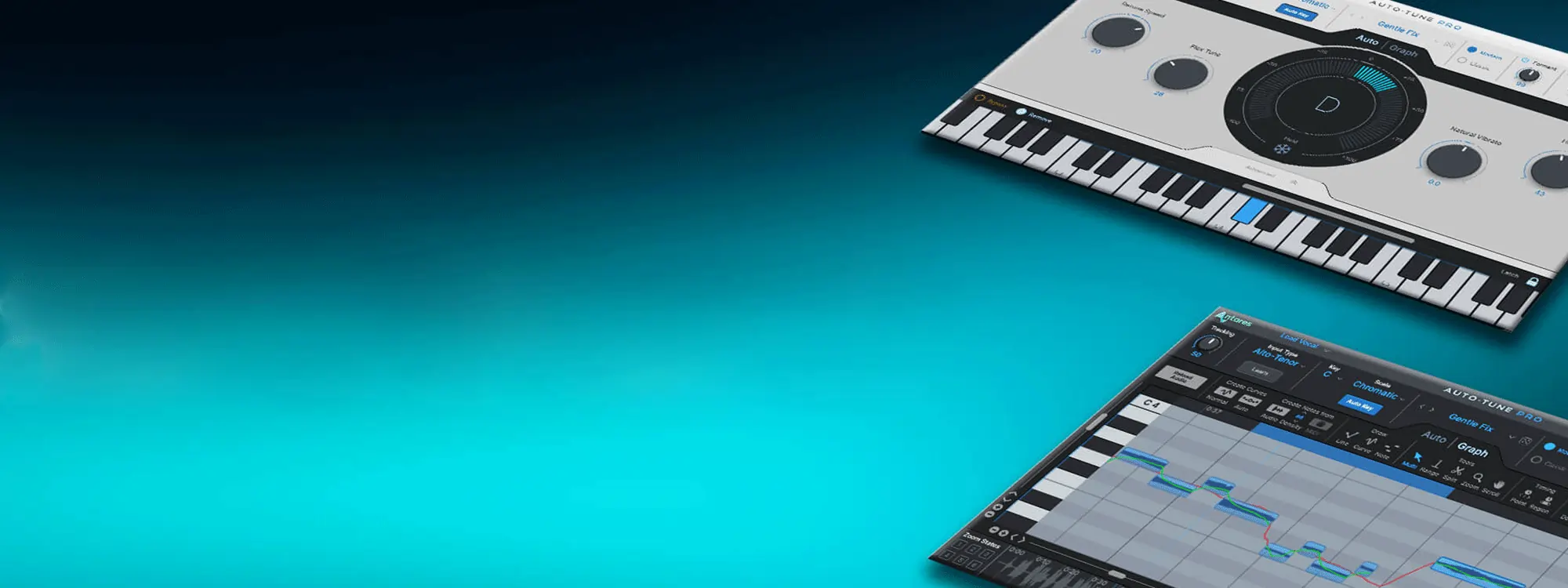
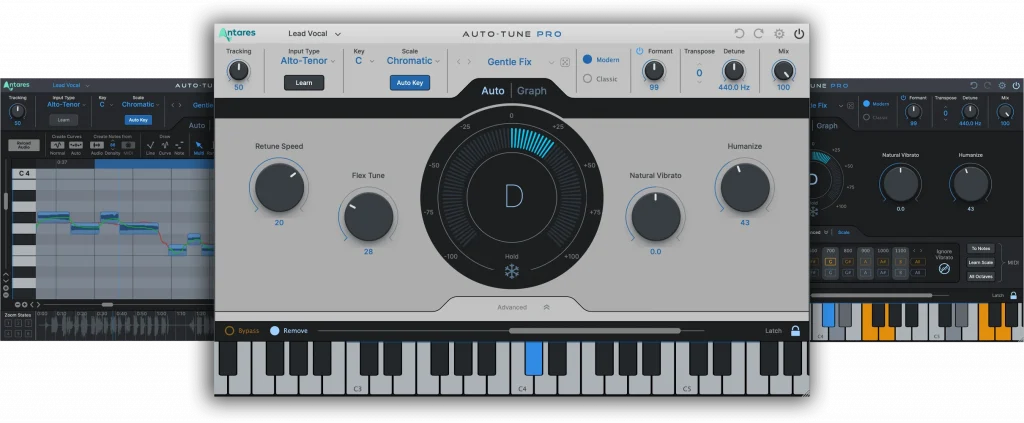
The professional standard for pitch correction is faster than ever. Introducing Auto-Tune Pro X, a major update to the flagship vocal tuning software. Built with an unwavering focus on velocity, the new Auto-Tune Pro X is faster than ever and includes dozens of new workflow improvements and enhancements.
Sounds cool, right? Well, let’s see Auto-Tune Pro X in action. We had producer, engineer, and vocal coach J Chris Griffin (Madonna, John Legend, Kelly Clarkson) take the new software through its paces. Watch the video or read the tutorial below.
Let's have a look at a few of Auto-Tune Pro X's new features.

Redesigned Graph Mode
A simplified note-object view and streamlined user interface make Graph Mode even easier to use.

Apple Silicon Native
Built to run natively on the newest Apple hardware for increased speed and plug-in efficiency.

Artists Presets and Presets Manager
An exclusive collection of artist presets and a new Presets Manager to fast-track creativity.

Multi-View
Quickly switch between separate Auto-Tune tracks in a single window to edit multiple vocals, faster.

ARA2 Support
Coming soon! Free automatic upgrades for subscribers including enhanced ARA2 support for select DAWs.

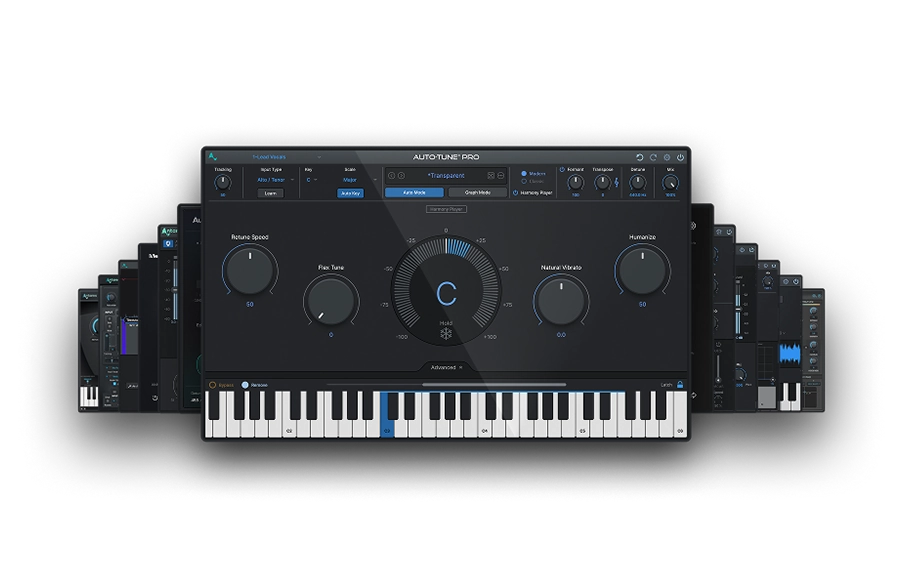
AutoTune Unlimited
The Ultimate Vocal Production Suite
Auto-Tune Pro X is the 25-year milestone update to Auto-Tune Pro, the flagship plug-in and namesake for professional tuning software. This new version is packed with new features, so let’s dive right in.
Apple Silicon native support is now fully implemented, as is full compatibility with the latest versions of Mac and Windows operating systems. There’s a redesigned, scalable, user interface for super-sharp graphics at any size. You can customize the plug-in and configure it how you want. There’s undo and redo inside the plug-in, which corresponds to key commands if your host supports it. And, a new mix knob that blends Wet and Dry signals for cool effects.
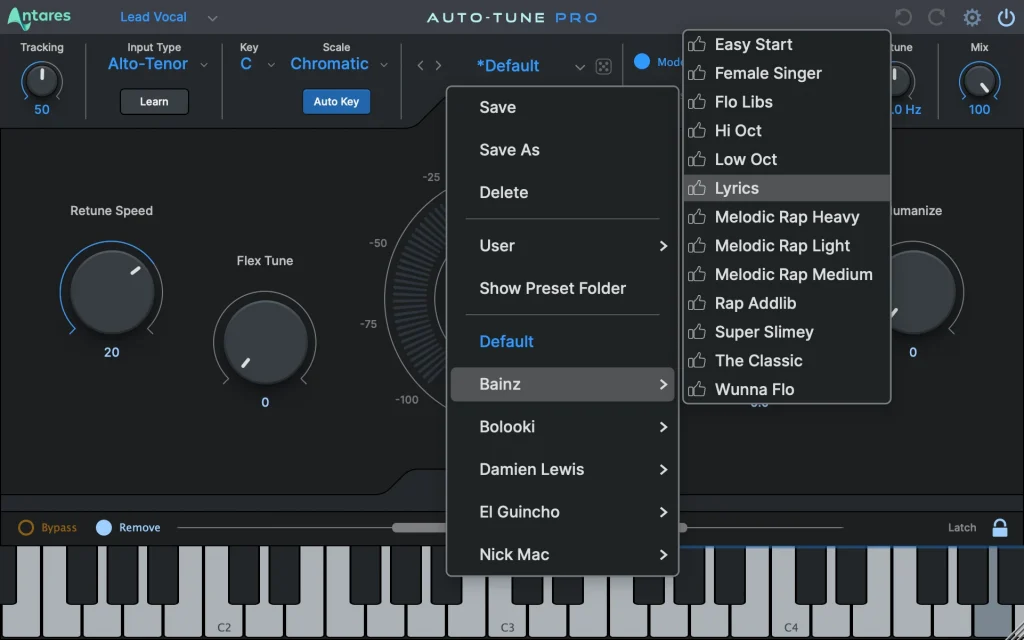
There’s a new Presets Manager with a roll-the-dice, randomized selection button, and a favorites system to mark preferred presets. Speaking of presets, several third parties and artists have contributed presets to Auto-Tune Pro X so you’ll never run out of ideas or inspiration points. A new line display shows all of the notes contained in a selected input type. And new machine learning algorithms can automatically set input type for glitch-free operation.
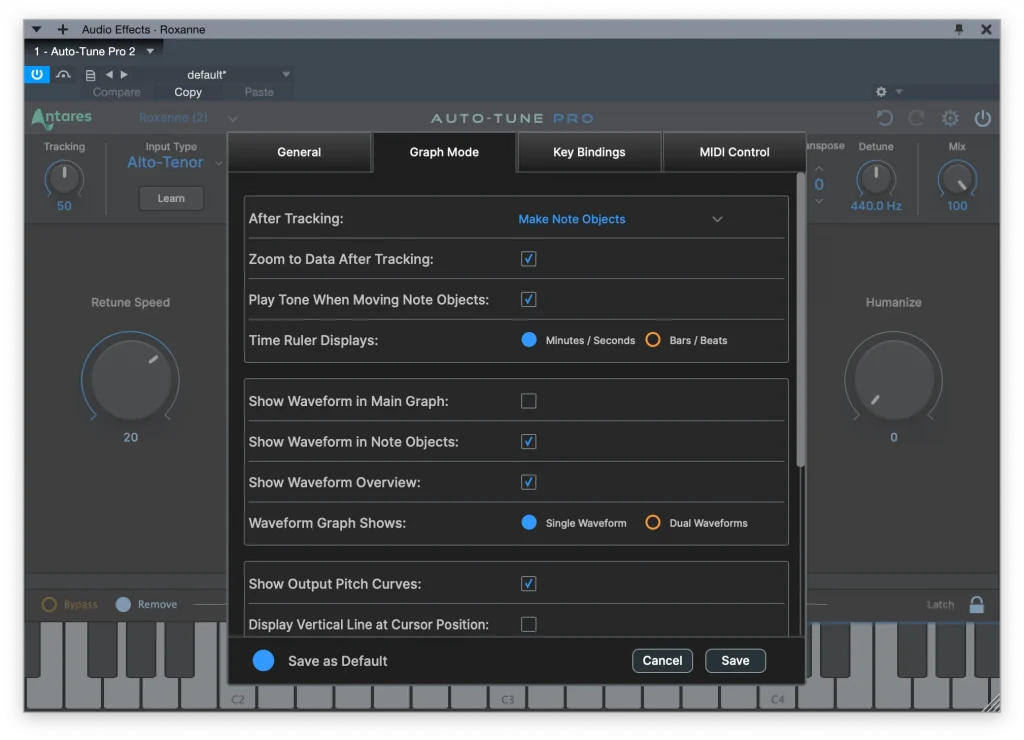
Graph Mode improvements include the option to automatically generate note objects upon pitch loading, new zooming shortcuts, and the ability for zooming to be controlled from a mouse or trackpad using common key modifiers, accommodating modern computer workflows. Other Graph Mode features include the ability to start Auto-Tune directly in Graph Mode, the preference to show or hide the audio waveform, and the ability to show a single or dual waveform in the time base area. There’s a new feature that allows you to access any currently instantiated Auto-Tune Pro X plug-in from within the current user interface, allowing fast edits between channels without cluttering up your screen. You’ll also notice tool alterations for cutting and pasting data and other Graph Mode improvements. Finally, there is expanded tooltip content, custom naming, and location options for time-based effect folders, new light and dark modes, and an in-plug-in bypass control.
There’s been improvements under the hood too with code compatibility for next-generation hardware and software. But the algorithm and sound of Auto-Tune is the same as before. Feel free to install and replace previous versions of Auto-Tune without worrying about audio changes in existing sessions.
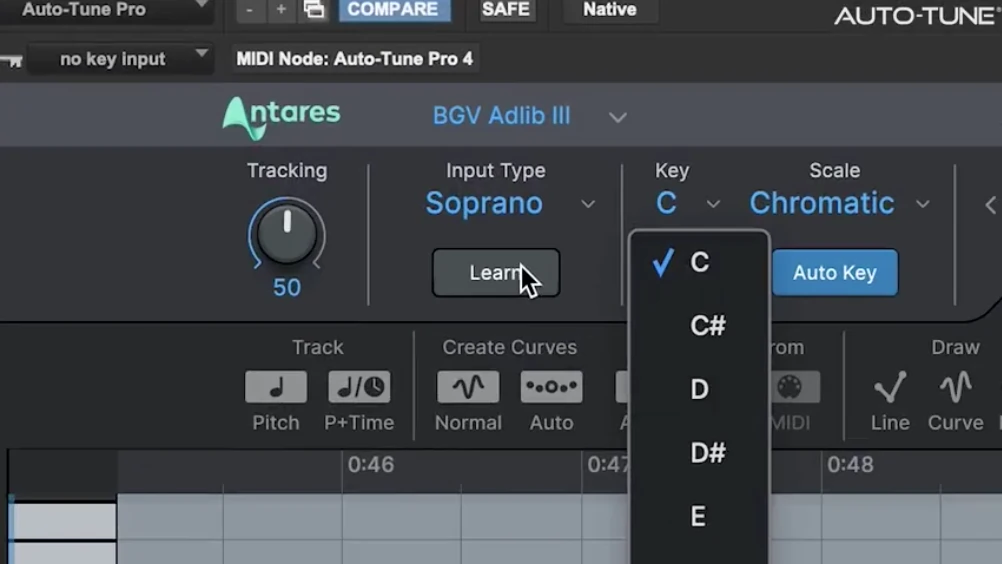
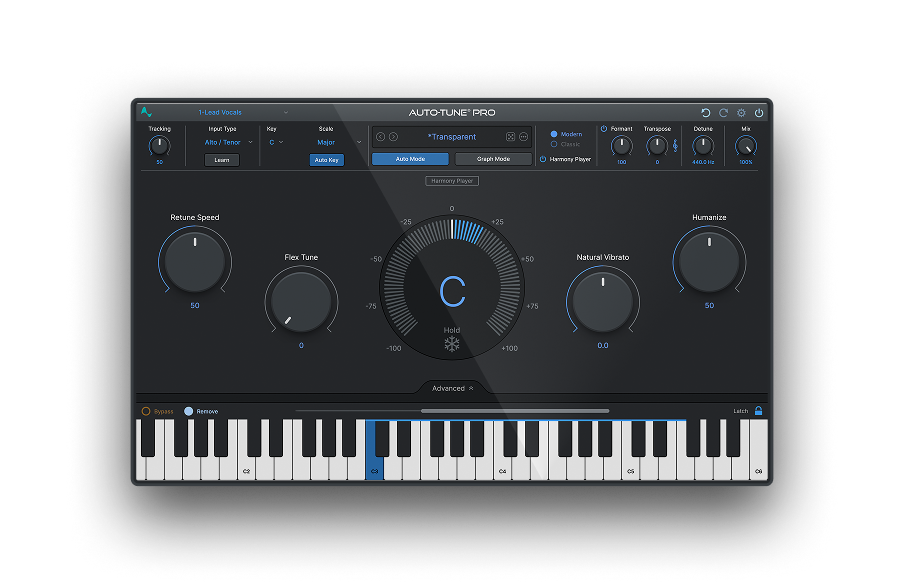
Now, let’s take a few minutes and go over the main operating parameters of the new Auto-Tune Pro X. Key, Scale, and Input Type are the first controls to set whether you use Auto or Graph mode. These settings tell Auto-Tune how to interpret pitch data and set boundaries for correction. The new Learn feature now automatically takes care of input type. If you use Auto-Key to set your key and scale, you now have an automatic way to set the three most crucial parameters of Auto-Tune for fast configuration and use. You can always set these controls manually, especially if you want to use an alternate scale or a custom scale.
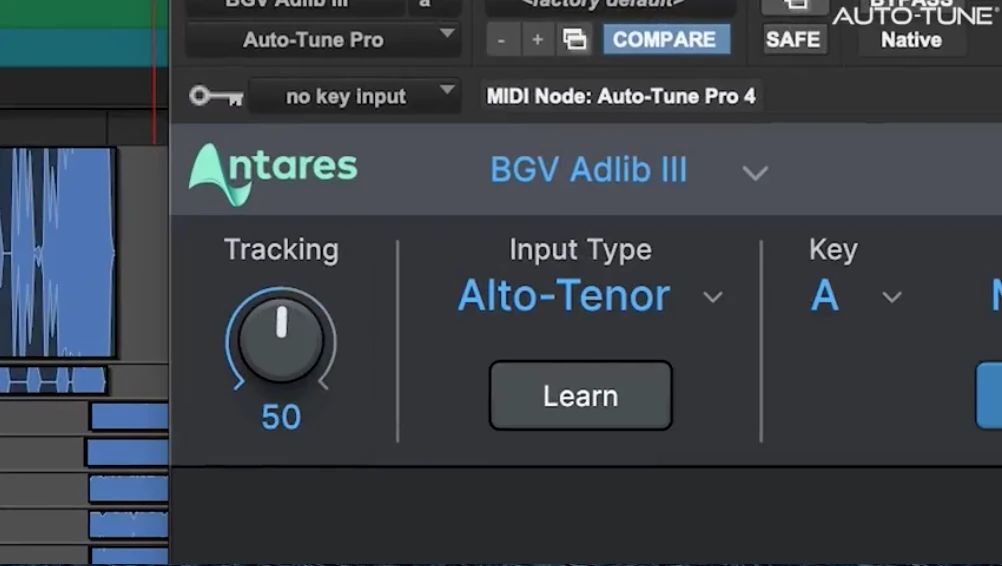
Tracking adjusts the algorithm to accommodate for extra noisy or breathy signals. A setting of 50 works almost every time if the input signal is set correctly, but if there are glitches or octave shifts in corrected audio, tracking adjustments will certainly solve the issue. If you’ve been using Auto-Tune for a while, you likely already know about Retune Speed. It’s simply the time it takes in milliseconds for pitch to move from where it is in real life to where it should be. Set it to 0 for immediate results like the famous Auto-Tune Effect and set it to 40, 50, or even 60, for subtle tuning and natural outcomes.
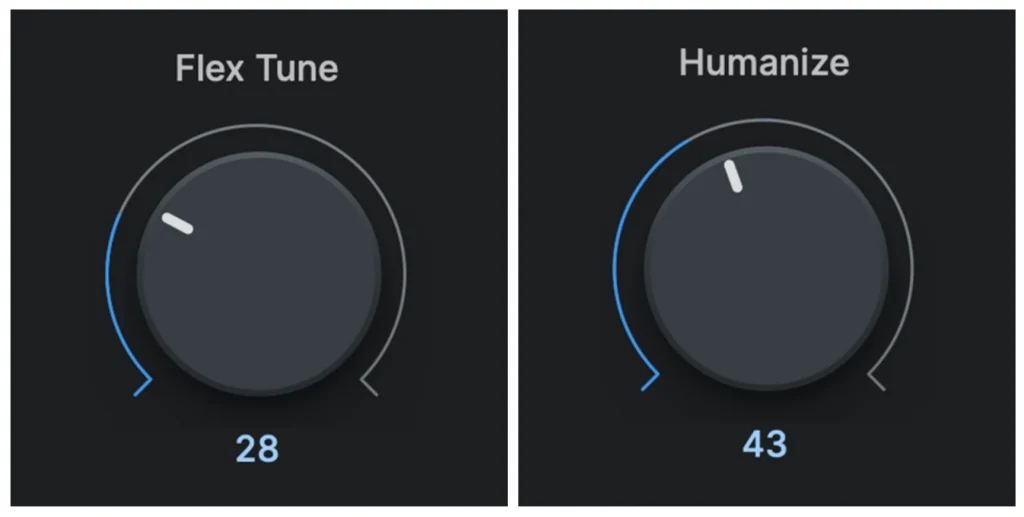
Flex-Tune and Humanize are controls that relax tuning parameters for more natural results. Humanize relaxes tuning speed when it senses long notes, so it won’t sound so static and mechanical through the note. And Flex-Tune creates an ‘ignore area’ between half steps so scoops and dips don’t get tuned so tightly.
The center display, like before, shows the amount of correction applied. You can watch it push a flat note up, or tune a sharp note back down to the appropriate pitch, following key and scale settings. Other controls that are important to know about are the algorithm choice and Formant setting. The original Auto-Tune algorithm is transparent enough until extreme settings are applied. And if you think back to 1996 and 1997, we didn’t yet understand that the extreme setting would be used artistically. But producers had other ideas and the sound of Auto-Tune at extreme setting became a recognizable sound all its own. Later there were those who wished for a cleaner sound when tight tuning was required and when computers got fast enough; Auto-Tune Evo was released as version 6 to solve that problem. As the story goes, those who wanted the old sound stayed with version 5 and solidified the effect in music using the old algorithm.
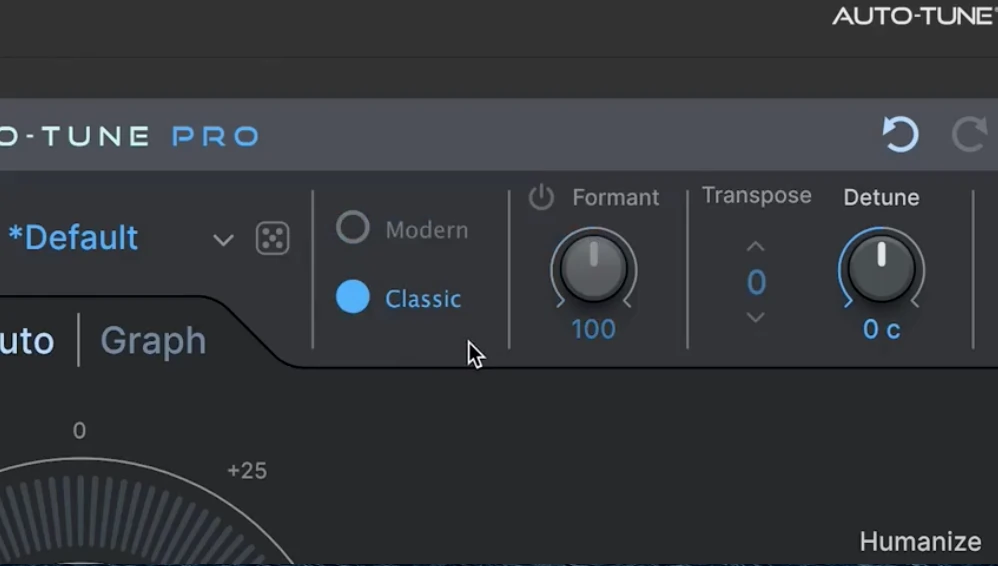
The good news is both algorithms are implemented in modern versions. Classic for the code used through Auto-Tune version 5, which is so prevalent as the Auto-Tune Effect. And Modern for a cleaner, more natural sound, especially at extreme settings. Now, there were no rules on which to use for a particular input signal. Sometimes Classic sounds cool and sometimes I use Modern to create a vibe. Technically, the Modern algorithm uses more sophisticated code that makes a vocal cleaner but that may not make it cooler. Listen and decide, and enjoy your choice.
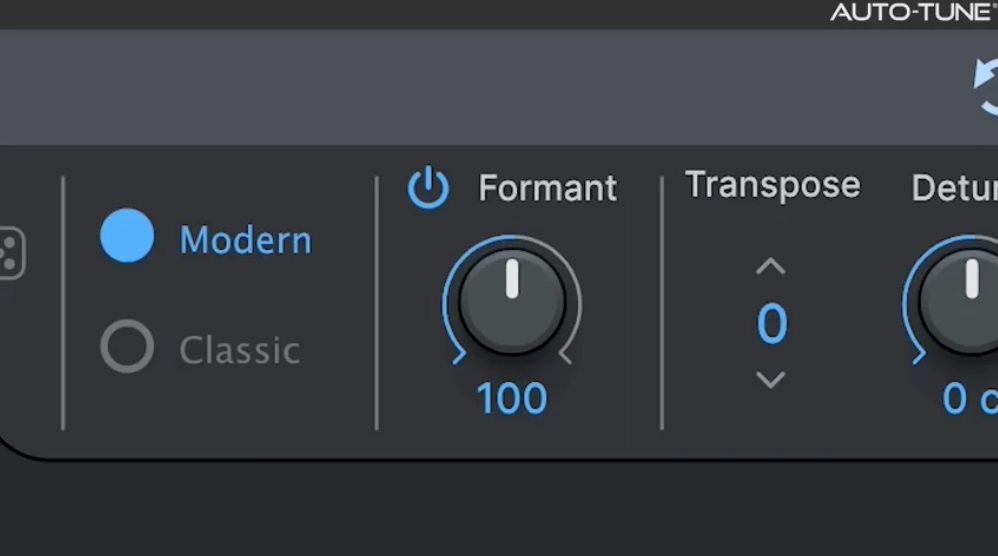
Formants are resonances in the vocal trunk that mostly stay the same as pitch moves up and down. In other words, the pitch frequencies and resonant frequencies are distinct from one another in the throat and other vibrating chambers. The Formant section contains powerful DSP to keep these resonances intact as pitch is changed. A difficult task, and CPU- intensive, but modern computers handle it fine. I always use it for the most natural results.

The knob under the Formant switch tunes the resonances up or down. In previous versions, this was labeled ‘Throat’ because it controls the length of a model throat. But in reality, it’s changing the resonant frequencies of the model formant and so it’s included here according to that fact. Feel free to change this setting for all kinds of effects. Combine Formant with the transpose control for modern vocal doubling an octave up, or an octave down.
Once you've got an understanding of all these controls, you can stay in Auto Mode or move to Graph Mode for refined editing. Several developments have made Graph Mode much easier to navigate and you should definitely take a look. First, import pitch data into the plug-in. Several methods are available depending on your host. When pitch acquisition is complete, Auto-Tune Pro X automatically generates note objects and places them in the timeline according to the key and scale indicated. From here you can simply listen and watch as Auto-Tune applies correction, stopping at points along the way to edit. This might be all you need to do for a perfect, next-level vocal.
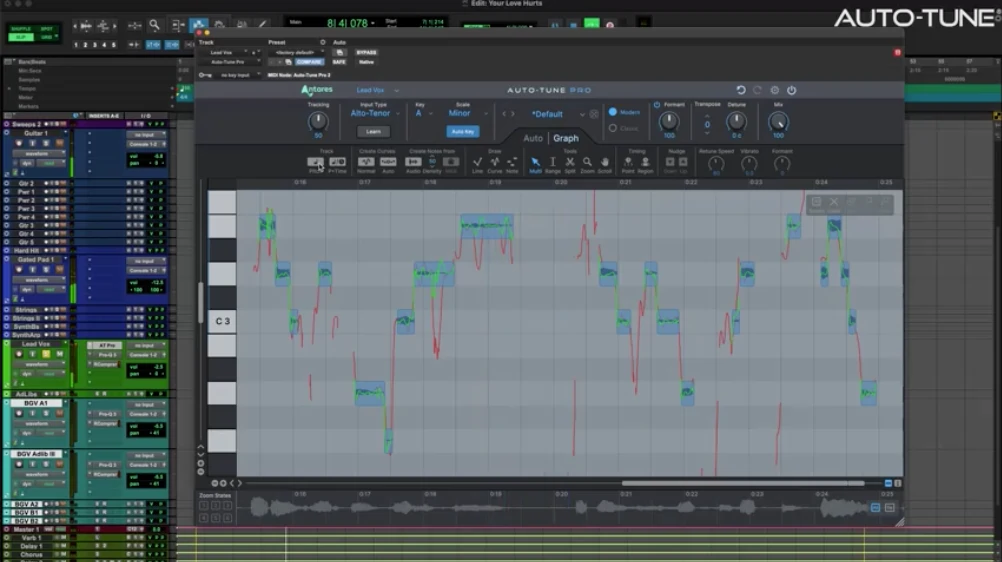
If more editing is required, you can adjust Retune Speed on the note object or get rid of that note object all together and apply your own move with a line or curve, adjusting Retune Speed on each and every segment created. Another technique is to let the vocal go untuned for a bit, then grab it midway, preserving the natural turns and moves of an artist as they sing.

When you’re done editing, Auto-Tune Pro X plays it back perfectly every time. Sometimes, I commit or freeze this for long-term permanence or further editing, but you don’t have to. Cutting and pasting Auto-Tune Pro X data has been simplified with a new floating tool window. Simply select, copy, hit paste, and click on your desired position, dragging it into place with precision. Graph Mode goes as deep as you want it to, but it never forces you to work in a certain way. For example, the default preference is set to auto-generate note objects, but you can change that and import Auto mode setting or start with a blank slate for 100% hand-drawn custom shapes. And that’s the way I use Graph Mode and the results are indistinguishable from reality when done right.
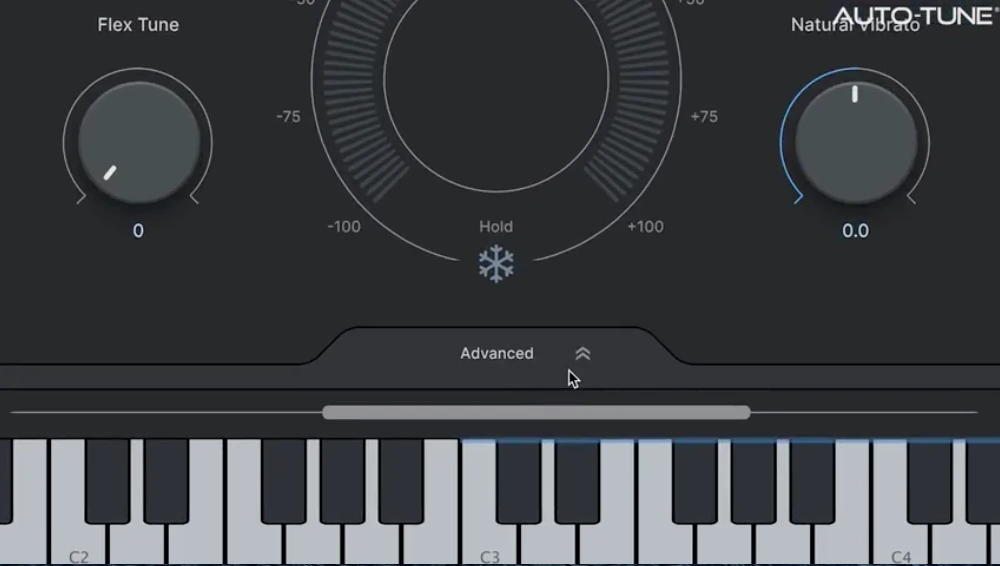
The last window to look at is the Advanced tab in Auto Mode. This brings up two choices: the Vibrato tab and the custom Scale tab. Auto-Tune allows you to create realistic vibrato with several controls, including waveform shape and onset rate. It also allows you to adjust whether it affects the formant resonances, the pitch, or both. The Scale tab is for custom scales in Auto Mode, useful for blues tracks of other music that uses modes or custom intervals. Major and minor presets are available for starting points and Set All clears the keyboard. You can set or clear individually, of course, allowing for 9ths but not seconds, for example. Or remove intervals from every octave.

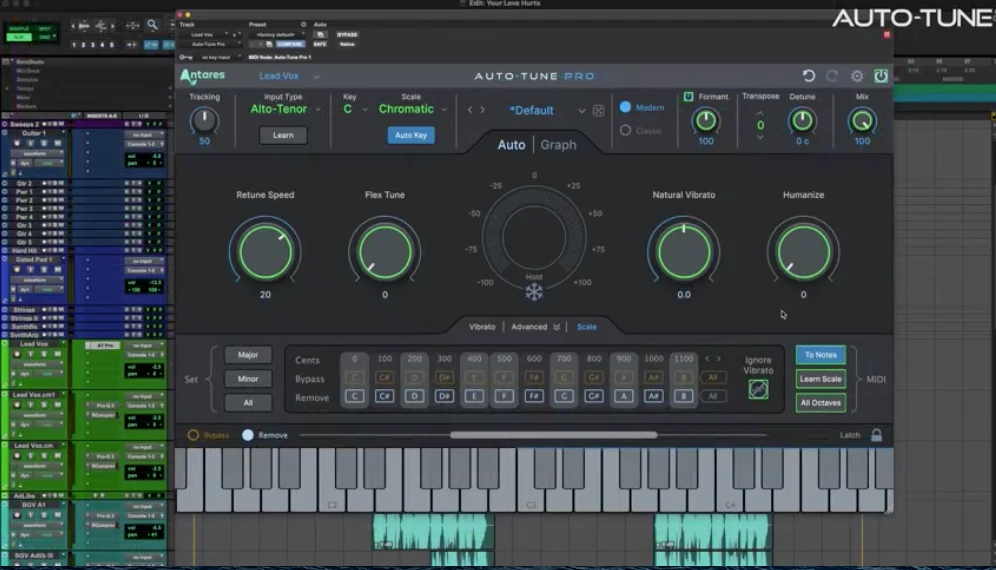
Latch Mode allows momentary operation for automation and Ignore Vibrato sets the tracking algorithm accordingly to minimize vibrato note shifts while correcting. Furthermore, you can connect a MIDI keyboard and control notes in real-time as you play. Lastly, these parameters and others can be automated for custom effects as long as your host allows it.
So, that’s Auto-Tune Pro X. Thanks for watching!

AutoTune Pro
The Professional Standard for Pitch Correction

Exclusive AutoTune Content

AutoTune Pro

AutoTune Unlimited
AutoTune 2026 and Metamorph
Now Included

Tutorial by: J. Chris Griffin
Multi-faceted producer, engineer, educator and vocal coach
Website | Facebook | Twitter
Veteran producer / remixer / engineer J. Chris Griffin’s experience and credentials in many ways speak for themselves. His 20+ years in the music industry based out of both New York City and Nashville have garnered him production and engineering credits from A-list recording artists such as Madonna, Kanye West, Janet Jackson, Kelly Clarkson, The Killers, Missy Elliot, John Legend and many more.