

You've recorded a solid lead vocal, but something's missing. The song needs depth, emotion, and weight. You need harmonies, but every attempt sounds like a mess. Timing's off, pitch is wrong, and the whole thing just sounds like noise.
Here's the truth: recording great vocal harmonies is one of the hardest skills in music production. But it doesn't have to be. Modern tools have transformed what used to take hours of painstaking work into something you can accomplish in minutes.
This guide walks you through everything from understanding what harmonies actually are to recording them professionally, whether you're doing it the traditional way or using modern harmony generation tools that deliver radio-ready results instantly.
What Are Vocal Harmonies and Why Do They Matter?
Vocal harmonies are additional vocal lines sung simultaneously with your main melody, using different notes that complement rather than repeat the lead. When done right, they can create a magical blend where two voices become something greater than their parts.
Harmonies transform your music from amateur to professional. They add emotional weight to choruses, create memorable hooks, and give your vocals the depth heard on every hit record across virtually every genre.
The challenge? Your brain naturally wants to sing the melody, not the harmony. Staying on pitch while hearing a different note is genuinely difficult. Add timing precision, consistent tone, and proper blending, and you've got one of production's toughest challenges.
The Three Ways to Create Harmonies
Manual Recording: The Traditional Approach
This is the "real deal." You record the lead vocal perfectly, then record distinct harmony parts (typically one above and one below the melody), then record doubles of each harmony for thickness. The result is organic, emotional, and authentically human.
The advantage: Natural imperfections and emotional authenticity.
The disadvantage: It's time-consuming, requires strong pitch accuracy, and if you're a solo artist, you're stuck with one vocal timbre.
Most importantly, you need to know which notes to sing. Common safe intervals for beginners include thirds (most popular), fifths, and octaves. Avoid seconds and sevenths initially since they create dissonance.
Generated Harmonies: The Modern Solution
Plugins like Harmony Engine can analyze your lead vocal's pitch, timing, and timbral characteristics, then generate complementary harmony notes while maintaining natural qualities like vibrato and breathiness. What used to require hiring session singers now takes minutes.
The advantage: Create complex arrangements instantly, experiment with different voicings rapidly, and extend beyond your natural vocal range.
The disadvantage: Can sound artificial if not processed carefully.
Best of Both Worlds: The Hybrid Approach
Use modern harmony tools to sketch your arrangement quickly, then replace prominent harmony parts with natural recordings. Or record key phrases manually and let the software handle the background pad vocals. This combines speed with authenticity.
Recording Harmonies the Manual Way
If you're recording harmonies yourself, follow this proven workflow.
Step 1: Perfect Your Lead Vocal First
Everything builds on this foundation. Record your main melody exactly how you want it, complete with comping, tuning, and timing. Harmonies will line up to this reference, so it needs to be flawless.
Step 2: Record at Least Two Distinct Harmonies
Record one harmony above the melody (typically a third up) and one below. Keep timing precise, matching where phrases start and end. Use closed-back headphones with the lead vocal prominent in your monitoring mix.
Step 3: Record Doubles of Each Harmony
Record each harmony part twice. The subtle natural variations between takes create width and prevent robotic sound. These micro-differences in tone, inflection, and timing are what make harmonies feel human.
Step 4: Pan Your Harmonies
Keep the lead vocal center. Pan low harmony doubles hard left and hard right. Pan high harmony doubles slightly less wide, around 70-80% left and right. This creates separation and width.
Step 5: Mix and Process
Apply more aggressive processing to harmonies than your lead. Use an EQ plugin like Vocal EQ to apply high-pass filters around 100Hz and cut muddy frequencies in the 200-400Hz range. Use a plugin like Vocal Compressor to apply compression with fast attack times to reduce punch, and send all harmonies to a shared reverb bus with shorter decay than your lead.
Modern Solutions: AutoTune Pro 11 and Harmony Engine
This is where music production gets exciting. Both of these tools generate harmonies from a single lead vocal, but they serve different purposes.
AutoTune Pro 11: Real-Time Harmony Player
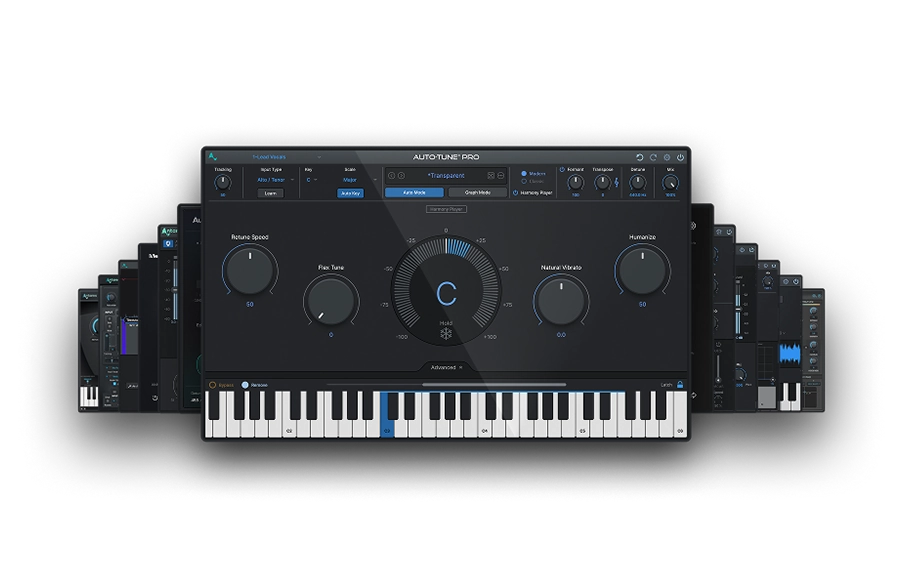
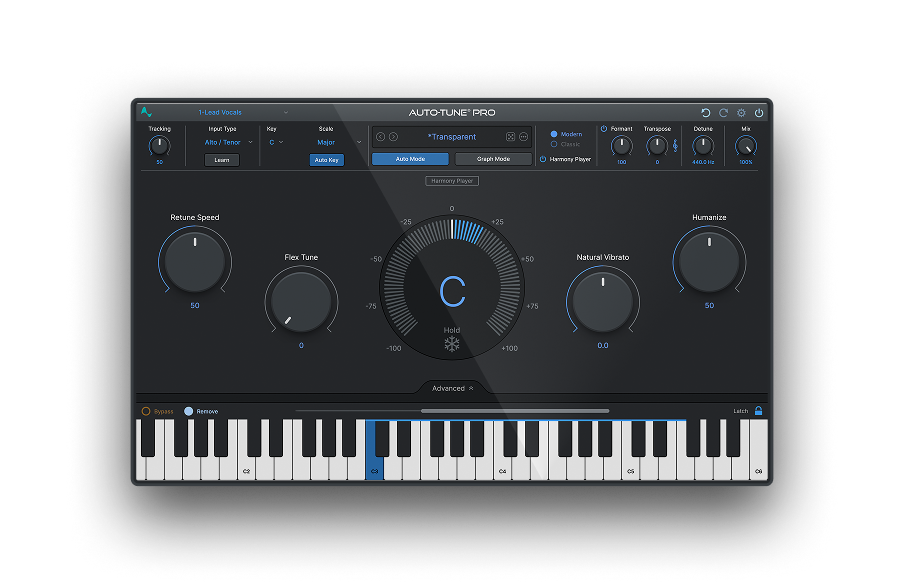
AutoTune Pro 11 includes a 4-part Harmony Player that creates harmonies while you work. It's integrated directly into the existing AutoTune workflow, making it perfect for modern producers who value speed and interactivity.
The Quick Start Workflow (5 Minutes):
Insert AutoTune Pro 11 on your vocal track. Use the Learn button to automatically detect your vocal characteristics. Set your song's key and scale. Enable the Harmony Player (two buttons: one in the toolbar, one below presets). Set Harmony Interval to "Scale Interval" so harmonies follow your key.
Choose intervals for each of the four voices, like 3rd Up, 5th Up, and Octave. Adjust individual voice levels (start at -3 to -6dB), pan positions (spread across the stereo field), and formant settings to create different timbres.
The Game Changer: Real-Time Triggering
AutoTune Pro 11's visual interface lets you trigger harmonies on specific words and phrases. You can enable automation in your DAW, then click the Harmony Player trigger buttons during playback. This performative approach makes programming harmonies feel musical rather than technical. You can even map triggers to MIDI hardware for hands-on control.
Harmony Engine: Professional Dedicated Tool
Harmony Engine is Antares' dedicated harmony plugin, offering deeper control and more features than AutoTune Pro 11's integrated Harmony Player.
The Power: 7 Harmony Modes
Harmony Engine provides seven different ways to generate harmonies, from simple fixed intervals to complex MIDI-controlled voicing. The most useful for beginners are Scale Interval (follows your key automatically) and Chord Name (type a chord and get four voices automatically assigned).
With up to 4 harmony voices plus a Choir multiplier that creates 2, 4, 8, or 16 voices per channel, you can generate massive vocal ensembles from a single performance. That's potentially 80 total voices.
Each voice has independent Throat Length modeling (formant control) for different timbres, individual panning and level control, and comprehensive humanization including Naturalize, Pitch Variation, Timing Variation, and generated vibrato.
The Key Difference: AutoTune Pro 11 is fast, interactive, and integrated with pitch correction. Harmony Engine is deeper, more powerful, and dedicated solely to harmony creation. Both produce professional results.
The Bottom Line
Great vocal harmonies transform good songs into great ones. The traditional manual approach can deliver amazing results but requires skill and time. Modern harmony generation tools make professional harmonies accessible to everyone while dramatically speeding up workflow.
The best approach? Combine both. Use AutoTune Pro 11 or Harmony Engine to sketch arrangements quickly, then replace prominent parts with natural recordings when time allows. For background pad vocals and complex choir sections, modern tools deliver results that manual recording can't match for efficiency.
Ready to transform your vocals with professional harmonies? Try AutoTune Unlimited free for 14 days and get instant access to both AutoTune Pro 11 and Harmony Engine.

AutoTune Unlimited
The Ultimate Vocal Production Suite

Exclusive AutoTune Content
Related Articles:

AutoTune Pro

AutoTune Unlimited
AutoTune 2026 and Metamorph
Now Included

Written by: Mike McMillen
Marketing Manager at AutoTune
LinkedIn
Mike has 10+ years of experience in the audio tech industry, having previously worked on globally-recognized brands such as Alesis and M-Audio. Prior to his marketing career, Mike traveled the globe as a guitarist for various punk rock and hardcore bands and also worked as an audio engineer on releases from Big D and the Kids Table, A Loss for Words, and more.