

We’ve all been there: The crucial lead vocal track needs a more commanding presence in the mix. Pushing up the mixer fader isn’t cutting it, the EQ is already how you want it, and you don’t want to mess with a complicated plug-in chain. You wish there was such a thing as a simple “in your face” control that could bring that singer forward, without risk of clipping.
There is, and it’s called Punch. In this Punch plug-in tutorial, audio engineer, musician, and educator Josh Carney covers the bases of this powerful plug-in from Antares.
Punch is available with Auto-Tune Unlimited, the ultimate collection of professional vocal effects. Subscribe now, or download your fully-featured, FREE 14-day trial of Auto-Tune Unlimited today.
What is Punch?
We developed Punch with the specific purpose of vocal enhancement. A large portion of the music that we listen to in the modern era is centered around the human voice. This vocal element might be singing, rap, spoken word, or even screaming and sound effects. Punch uses intuitive compression, limiting, and overload protection to add dynamic and definition to these vocal parts and ensures that they are clear and present throughout your song or arrangement.
With Punch’s speedy, ergonomic GUI and intelligent processing, users can turn good vocal takes into great vocal takes, and great vocal takes into instant classics.
Vocal Compression Explained
Compression is one of the oldest and most common mixing tools and techniques. During the mixing process, an engineer may want to increase the presence or clarity of a particular mix element without increasing its volume. An engineer may want to lower specific peaks in an audio signal at other times without lowering its overall volume. In both cases, compression is often the solution.
Compression controls the dynamic range of an audio signal, reducing the distance between its loudest and softest areas. Vocalists often record their parts with varying degrees of volume and resonance. Balancing the dynamic range of these audio signals creates a louder perceived volume and gives the signal more impact or punch.
Punch’s processing is specifically designed for use over vocal recordings. In addition to its powerful compression, the device also includes a limiter and overload protection that allows users meticulous gain control. This unique voice enhancement plug-in is essential for anyone who needs to get their vocal to pierce through busy or dense mixes.

Punch
Vocal Impact Enhancer
Who is Punch For?
Punch is the ideal voice enhancer device for any producer, engineer, or vocalist to utilize for their mixes. Punch provides users with a straightforward, no-nonsense utility for livening up dull or lifeless vocal takes. From subtle whispers to soaring screams, Punch is the ideal tool for generating vocal recordings with poise and conviction. More than just a music tool, Punch also works perfectly alongside audio for podcasts and overdubbing and is perfect for enhancing voice-over recordings.
One of Punch’s greatest strengths lies in its simplicity. Punch’s controls are laid out in a slick, fast, and highly user-friendly interface. Punch’s voice enhancer controls make it easy for any skill level to use, whether you’re a seasoned producer/engineer or still learning to master the basics of mixing. Punch is also surprisingly light on CPU, and you can even run multiple instances of Punch across a single session simultaneously.
Even though Punch is primed for enhancing vocal takes and recordings, you can also try it on a wide variety of other instruments. Use Punch to add an extra bounce to your drums or percussions or attenuate abrasive guitar leads or synths. Try some of the techniques you’ve learned in this Punch plug-in tutorial to hear the result—a vocal that jumps out of the speakers without you having to rethink the mix around it.
How to Use Punch
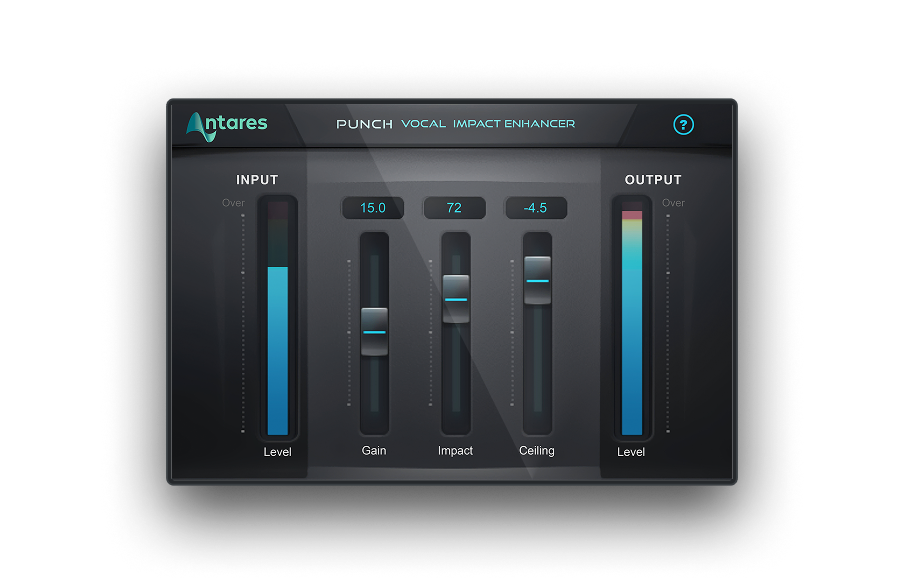
- Open up an instance of Punch on the track/channel of the mix element that you wish to treat.
- Use the input level meter on the left-hand side to measure the overall gain level of the incoming audio signal. Now controls in Punch can control or change this specific level.
- Use the Gain slider to increase the overall volume level of the incoming signal. This control is ideal for bringing up overly soft or weak vocal recordings.
- Use the Impact slider to even out the dynamic range of the incoming vocal signal. This control is the primary compression function in Punch and will control the majority of your signal’s overall velocity and sustain.
- Use the Ceiling slider to attenuate any excess volume peaks after you’ve set the Gain and Impact controls to preference. The Ceiling control uses gain reduction to prevent any harsh or abrasive volume peaks caused by processing from entering the mix.
- Use the Output meter on the right-hand side of the interface to measure your processed signal’s overall gain level. Ideally, your input and output levels should match or be close to each other in value.
With Punch, creators everywhere can deliver mixes with world-class vocal presence and clarity – all from the comfort of their DAW. Punch packs a series of incredibly powerful vocal processing tools into one simple, fast, and versatile plug-in.
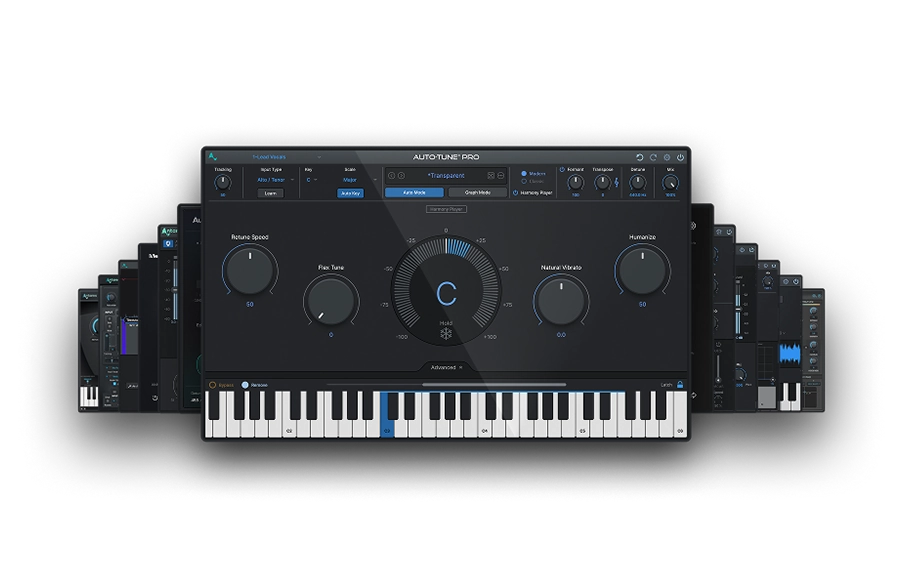
Best of all, Punch is one of many plug-ins available in Auto-Tune Unlimited, the ultimate suite of vocal effects. Auto-Tune Unlimited includes every version of Auto-Tune, 13 vocal effects plug-ins, FREE automatic updates, and more.
Punch makes it dead simple to increase the power and clarity of any mix.

AutoTune Unlimited
The Ultimate Vocal Production Suite

Exclusive AutoTune Content

Punch

AutoTune Unlimited
AutoTune 2026 and Metamorph
Now Included

Tutorial by: Josh Carney
Audio Engineer, Musician, and Video Producer
Website
Josh Carney is an audio engineer, musician, and video producer with over 15 years of experience. In addition to creating tutorial videos for Antares, YouTube, Ask.Video, and MacProVideo, Josh offers recording, mixing, mastering, songwriting, and session musician studios at his studio in Tampa Bay, Florida.