
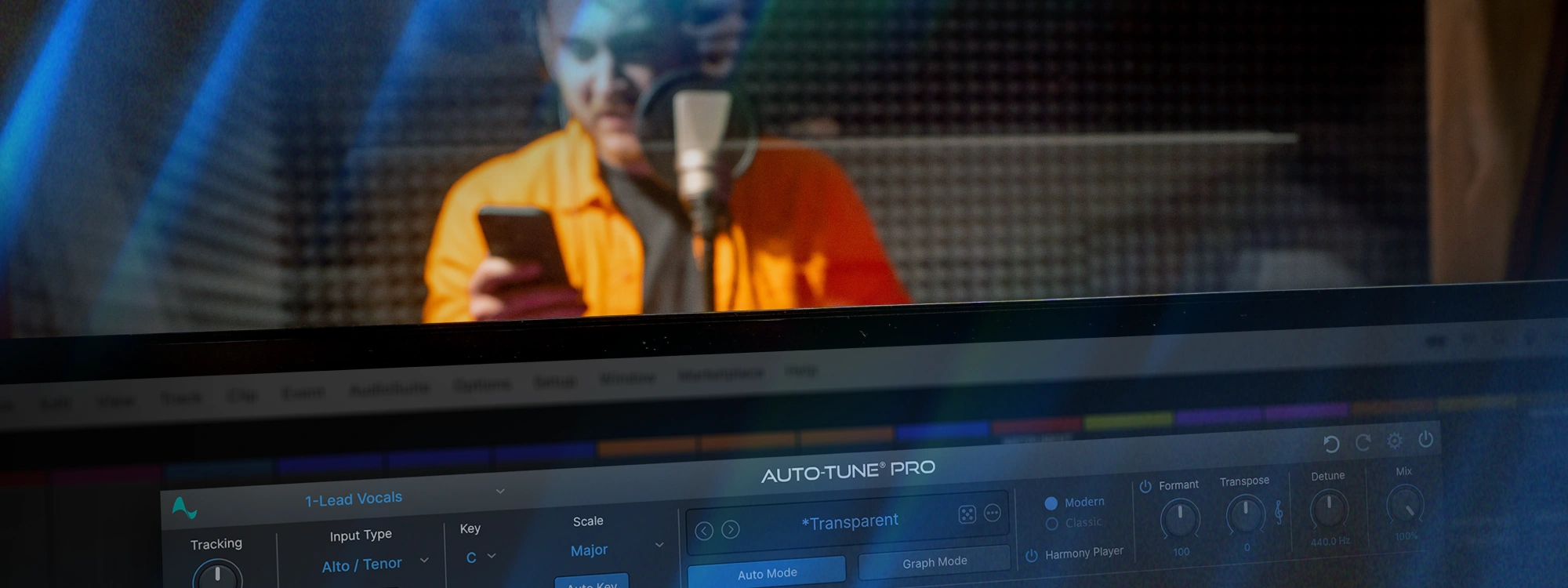
Low latency monitoring is the practice of keeping the delay between a performer singing into a microphone and hearing themselves back in their headphones short enough that it does not affect their performance. In a recording session, that delay, called latency, is caused by the time it takes your computer to process audio through your DAW and any plugins running on the signal. Controlling latency is how you keep a session moving. Tools like AutoTune 2026 remove the technical friction so you can stop worrying about your settings and get back to the music.
What Is Latency?
Latency is the time delay between an audio signal entering your system, when the vocalist sings into the microphone, and that audio signal coming back out through your monitors or headphones. It's measured in milliseconds and is an unavoidable byproduct of how digital audio works.
When your audio interface receives a signal, it doesn't process samples one at a time. It collects them into blocks called buffers, processes the entire buffer, and then outputs the result. The larger the buffer, the more time that process takes, and the more delay you hear.
At small amounts (under 10 ms), latency is imperceptible. Most people cannot detect a delay that small. At 20 to 30 ms, it starts to feel slightly off, like a very mild echo. Above 40 ms, the delay becomes genuinely disruptive. Vocalists lose their timing, guitarists cannot play in rhythm, and the recording session grinds to a halt.
Why Latency Happens in DAWs
Three main factors determine how much latency you experience during a recording session.
Buffer size. This is the most direct control you have over latency. A smaller buffer means less delay but more demand on your CPU, because the computer has to process smaller chunks of audio more frequently. A larger buffer eases the CPU load but introduces more delay. During recording and tracking, you want the smallest buffer your system can handle without causing dropouts or clicks.
Your audio interface. The quality and design of your audio interface plays a significant role in how efficiently it converts and routes audio. Professional interfaces, particularly those using Thunderbolt or USB-C connections, tend to offer lower round-trip latency than entry-level options. Many professional interfaces also include direct monitoring, which routes the input signal directly to the headphones before it even enters the DAW, as a way to eliminate monitoring latency entirely during tracking.
Plugin processing overhead. Every plugin in your signal chain adds processing time, and some plugins add more than others. Pitch correction is particularly prone to this because accurately detecting and correcting pitch requires analyzing the signal over a window of time. Older pitch correction algorithms were notorious for adding significant latency. Modern pitch correction, specifically AutoTune 2026's Low Latency mode, is engineered to minimize this.
How to Reduce Latency in Your DAW
When recording in a DAW, you have a choice about how you monitor your performance.
Lower your buffer size during tracking. Most DAWs let you adjust this in the audio preferences. A common approach is to use a small buffer (64 to 128 samples) while recording and switch to a larger buffer (512 to 1,024 samples) during mixing, when real-time monitoring is no longer needed and CPU demand is higher.
Use ASIO drivers on Windows. On Windows systems, ASIO (Audio Stream Input/Output) drivers bypass the Windows audio system and communicate directly with your audio interface hardware, dramatically reducing latency compared to standard Windows audio drivers. Most professional audio interfaces include ASIO drivers. If yours does not, ASIO4ALL is a free workaround that can help.
On Mac, use Core Audio. macOS's Core Audio is natively efficient and generally provides low latency performance without third-party drivers. For full optimization, selecting your hardware manufacturer's specific driver within your DAW settings when available, is the single most important step to achieving the lowest possible latency.
Freeze or bypass CPU-heavy plugins on tracks that do not need real-time monitoring. During a tracking session, the only plugins that need to run in real time are the ones on the vocal being recorded. Freezing your other tracks frees up CPU resources and allows your buffer to stay small.
Use Low Latency mode on your pitch correction plugin. In AutoTune 2026, Low Latency mode is specifically designed for tracking and live performance scenarios. It minimizes the processing delay introduced by the plugin so you can monitor through pitch correction in real time without the delay becoming distracting.
Direct Monitoring vs. Software Monitoring
When recording in a DAW, you have a choice about how you monitor your performance.
Direct monitoring bypasses the DAW entirely. Your audio interface sends the signal straight from the input to your headphones, with no processing, no buffer, and effectively zero latency. The tradeoff is that you hear your raw, unprocessed voice with no pitch correction, no reverb, no EQ. For some artists, that's fine. For others, hearing their dry, unprocessed vocal makes it impossible to perform well.
Software monitoring routes the signal through your DAW, where your plugins process it before it reaches your headphones. You hear yourself with pitch correction, reverb, and everything else engaged. The tradeoff is that every plugin in the chain adds to the monitoring latency.
The goal of low latency monitoring is to get the best of both worlds: software monitoring with a minimal enough delay that the artist does not notice it.
What Low Latency Means for Pitch Correction
Pitch correction and latency have always had a complicated relationship. The algorithm needs to analyze a window of audio to accurately detect pitch, and that analysis takes time. For years, this meant that using pitch correction during tracking introduced enough delay to make real-time monitoring uncomfortable.
AutoTune 2026 solves this with a rebuilt pitch correction engine that's up to 35% more CPU-efficient at 48 kHz and up to 2.3x faster at high sample rates. The Low Latency mode reduces monitoring delay to a level that works in real-time workflows, letting producers keep their pitch correction engaged during tracking without forcing the vocalist to perform dry.
Save High Quality mode for mixing, where audio fidelity matters most. When you’re recording, switch to Low Latency mode. It keeps the signal chain fast and responsive so you can track comfortably without feeling disconnected from your voice.
Recommended Buffer Sizes by Task
| Buffer Size | Primary Usage | Latency Impact |
| 64 to 128 samples | Recording vocals, tracking live instruments. | Near zero latency; optimal for real time monitoring. |
| 256 samples | Light editing and stability. | Minimal delay; manageable for most performers. |
| 512 to 1,024 samples | Mixing and dense plugin chains. | Significant latency; CPU stability prioritized over monitoring. |
| 2,048 samples and above | Rendering, bouncing, final export. | Maximum latency; real time monitoring is disabled. |
How Plugin Latency Compensation Works in DAWs
Most modern DAWs include automatic latency compensation, also known as PDC. This feature comes standard in all the major platforms, including Pro Tools, Logic Pro, Ableton Live, FL Studio, Cubase, Studio One, and Reaper. It works by detecting the delay a plugin introduces and shifting your other tracks to keep everything in time during playback.
That process is perfect for mixing, but there is a catch. PDC only works during playback. It cannot fix the monitoring delay you feel while you are actually recording. Even if the DAW aligns the audio on your timeline, that plugin is still adding delay to the signal going into your headphones. This is why low latency plugins are essential at the recording stage. They keep your vocal in sync with the beat so you can perform naturally.
Track Vocals Without the Delay with AutoTune
AutoTune 2026 is included in AutoTune Unlimited alongside AutoTune Pro 11, AutoKey, and the full AI-Powered Vocal Chain. Get everything you need for professional vocal production in one subscription.

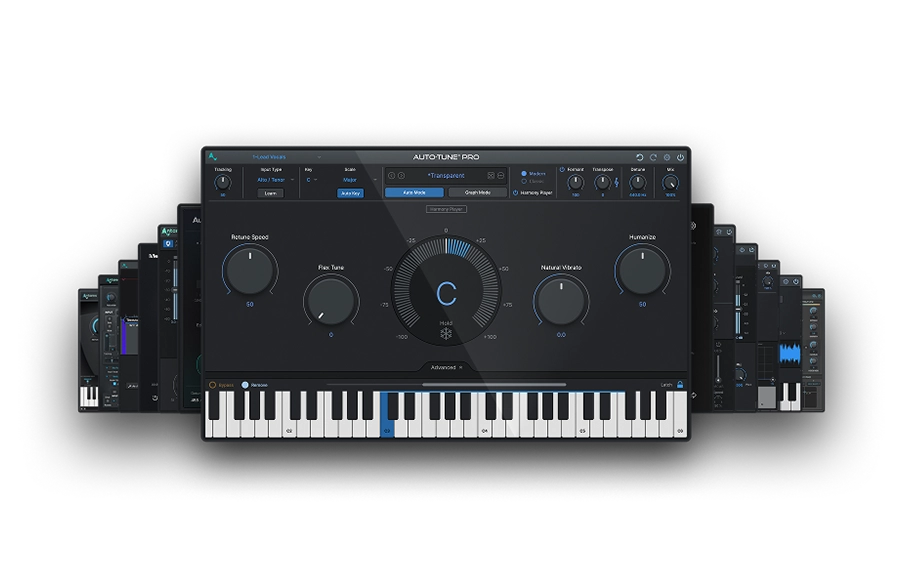
AutoTune Unlimited
The Ultimate Vocal Production Suite
Frequently Asked Questions About Low Latency Monitoring
Why is my DAW still lagging even at low buffer sizes?
Buffer size is only one piece of the puzzle. If you are experiencing delay even at low settings, check your master bus for processing heavy plugins like mastering limiters or visual analyzers, which add significant latency. Also, ensure your sample rate is not set unnecessarily high, as this increases the CPU load required to process audio. Try bypassing your master chain while recording to see if the delay disappears.
Why does my vocal sound out of sync with the track even after I have fixed the latency?
This often happens due to a monitoring conflict. If your audio interface has a direct monitoring feature enabled while you are also listening to the signal coming back through your DAW, you will hear the dry signal and the processed signal simultaneously. This creates phase issues and the sensation that you are out of sync. Choose one monitoring path, either direct hardware monitoring or software monitoring, and disable the other.
Can I record with pitch correction without adding noticeable latency?
Absolutely. The challenge with older pitch correction software was that it required massive processing power, which caused unacceptable delay for the vocalist. Modern AutoTune plugins are optimized specifically for tracking, allowing you to hear your corrected pitch in real time with minimal overhead, so your performance remains natural and tight.

Exclusive AutoTune Content

AutoTune 2026
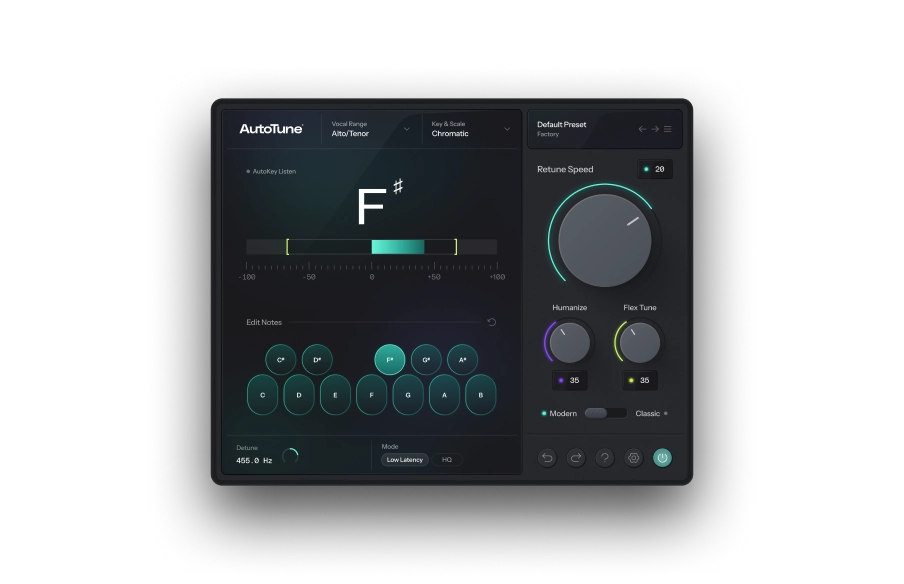

AutoTune Unlimited
AutoTune 2026 and Metamorph
Now Included

Antares Editorial
Antares is a leading developer of software for music recording and live performance. For over 20 years, Antares has powered the music of top-charting and indie artists with products including the industry standard for pitch correction, AutoTune™.